
Building a full-stack chatbot powered by Qwen 3 8B, Modal, and Vercel’s AI SDK requires just three steps:
Deploy the Qwen 3 8B model on Modal
Connect a Next.js app to Modal with the AI SDK
Add a chat UI with Vercel’s AI Elements
In five minutes, this chatbot with its swanky UI will be running on the web:
Setup
Let’s start with some project scaffolding:
mkdir -p my-chatbot/backend
cd my-chatbot/backend
1. Deploy the Qwen 3 8B model on Modal
In the Modal examples, there is a great tutorial for deploying the Qwen 3 8B on Modal. I stole that exact code to write this backend, so I recommend taking a look at the tutorial for a technical explanation.
In short, this code runs a vLLM server in OpenAI-compatible mode so that downstream clients and tools that know how to use the OpenAI API can interact with the server.
Since we’re on a time crunch, paste the following code in a python file named vllm-inference.py.
import json
from typing import Any

import aiohttp
import modal

vllm_image = (
    modal.Image.from_registry("nvidia/cuda:12.8.0-devel-ubuntu22.04", add_python="3.12")
    .entrypoint([])
    .uv_pip_install(
        "vllm==0.11.2",
        "huggingface-hub==0.36.0",
        "flashinfer-python==0.5.2",
    )
    .env({"HF_XET_HIGH_PERFORMANCE": "1"})  # faster model transfers
)

MODEL_NAME = "Qwen/Qwen3-8B-FP8"
MODEL_REVISION = "220b46e3b2180893580a4454f21f22d3ebb187d3"  # avoid nasty surprises when repos update!

hf_cache_vol = modal.Volume.from_name("huggingface-cache", create_if_missing=True)

vllm_cache_vol = modal.Volume.from_name("vllm-cache", create_if_missing=True)

FAST_BOOT = True

app = modal.App("example-vllm-inference")

N_GPU = 1
MINUTES = 60  # seconds
VLLM_PORT = 8000

@app.function(
    image=vllm_image,
    gpu=f"H100:{N_GPU}",
    scaledown_window=15 * MINUTES,  # how long should we stay up with no requests?
    timeout=10 * MINUTES,  # how long should we wait for container start?
    volumes={
        "/root/.cache/huggingface": hf_cache_vol,
        "/root/.cache/vllm": vllm_cache_vol,
    },
)
@modal.concurrent(  # how many requests can one replica handle? tune carefully!
    max_inputs=32
)
@modal.web_server(port=VLLM_PORT, startup_timeout=10 * MINUTES)
def serve():
    import subprocess

    cmd = [
        "vllm",
        "serve",
        "--uvicorn-log-level=info",
        MODEL_NAME,
        "--revision",
        MODEL_REVISION,
        "--served-model-name",
        MODEL_NAME,
        "llm",
        "--host",
        "0.0.0.0",
        "--port",
        str(VLLM_PORT),
    ]

    # enforce-eager disables both Torch compilation and CUDA graph capture
    # default is no-enforce-eager. see the --compilation-config flag for tighter control
    cmd += ["--enforce-eager" if FAST_BOOT else "--no-enforce-eager"]

    # assume multiple GPUs are for splitting up large matrix multiplications
    cmd += ["--tensor-parallel-size", str(N_GPU)]

    print(cmd)

    subprocess.Popen(" ".join(cmd), shell=True)
Now to deploy the API on Modal, make sure uv and Modal are installed and set up before running the Modal deploy command.
To install uv, run:
wget -qO- https://astral.sh/uv/install.sh | shTo install and setup Modal, run:
uvx modal setupNow, to deploy the API on Modal, run:
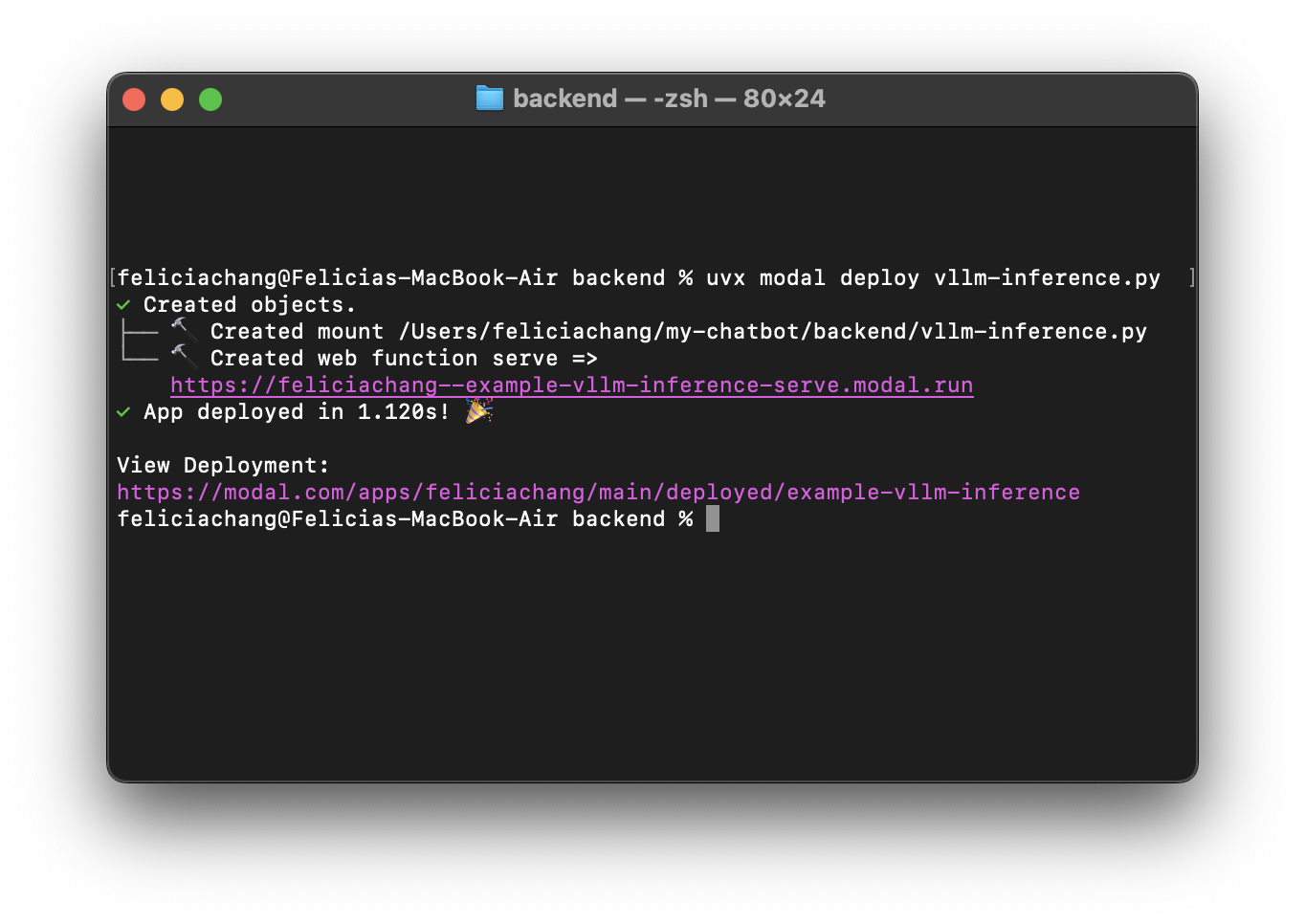
uvx modal deploy vllm-inference.pyOnce your code is deployed, you’ll see a URL appear in the command line, something like https://your-workspace-name--example-vllm-inference-serve.modal.run.
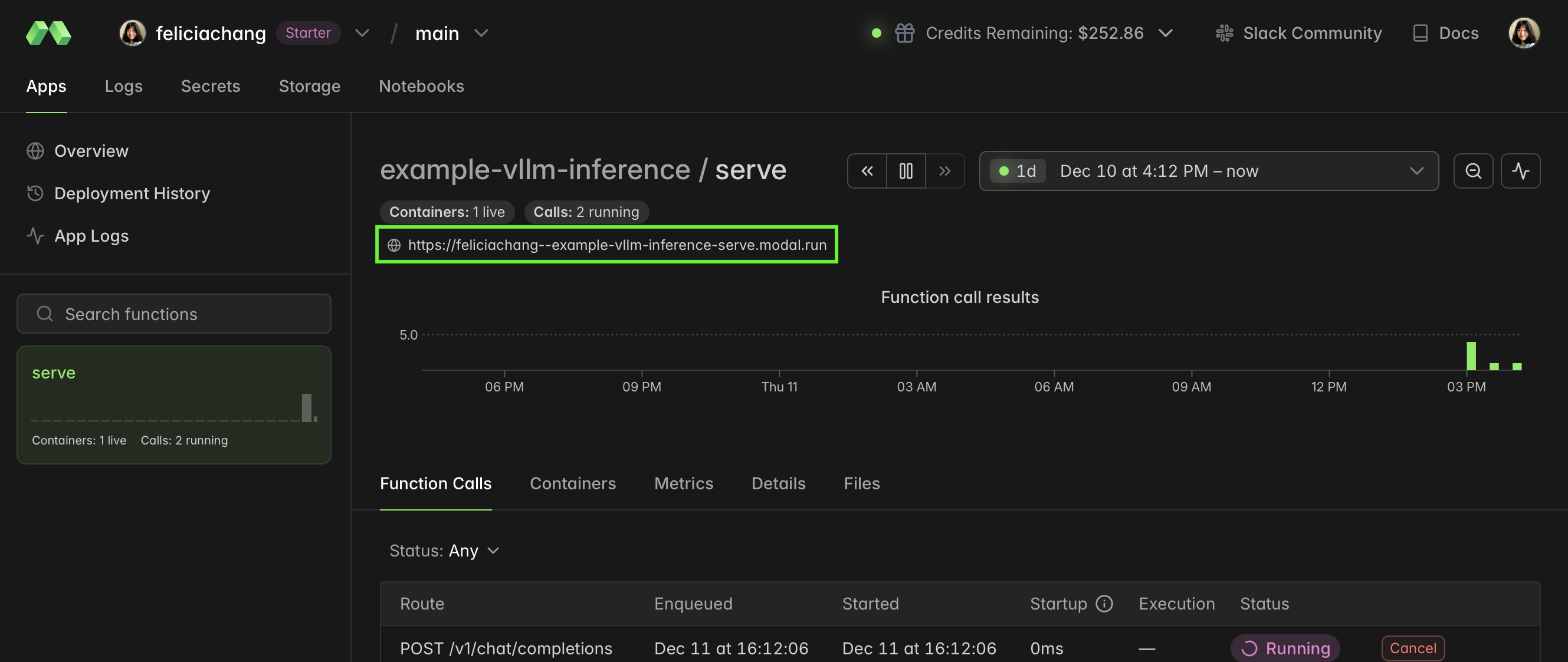
You can also find the URL on your Modal dashboard:
In the next step, we’ll work on connecting a Next.js app to Modal using the OpenAI Compatible Provider integration path in the AI SDK.
2. Connect a Next.js app to Modal with the Vercel AI SDK
Now on to the frontend! Start by creating a Next.js app using the defaults. If needed, install node and npm first.
cd ..
npx create-next-app@latest frontend
cd ./frontend
Then install the OpenAI Compatible provider from the AI SDK, which we will use to connect to the Qwen 3 8B model running on Modal:
npm install ai @ai-sdk/openai-compatibleIn the app folder, create a /chat route by creating an app/api/chat/route.ts file (note that route.ts lives in a few nested folders!). Then paste the following code:
import { NextRequest } from 'next/server';
import { streamText, convertToModelMessages, type UIMessage } from 'ai';
import { createOpenAICompatible } from '@ai-sdk/openai-compatible';
import { wrapLanguageModel, extractReasoningMiddleware } from 'ai';

export const modalProvider = createOpenAICompatible({
    name: 'modal',
    baseURL: 'https://YOUR-MODAL-WORKSPACE--example-vllm-inference-serve.modal.run/v1',
  });

export const modalReasoningModel = wrapLanguageModel({
  model: modalProvider('Qwen/Qwen3-8B-FP8'),
  middleware: [
    extractReasoningMiddleware({
      tagName: 'think',
      separator: '\n\n',
    }),
  ],
});

export async function POST(req: NextRequest) {
  const { messages }: { messages: UIMessage[] } = await req.json();

  const result = await streamText({
    model: modalReasoningModel,
    messages: convertToModelMessages(messages),
  });

  return result.toUIMessageStreamResponse();
}
Make sure to to change the parameters in the baseURL to match the URL output from the command line in the earlier step. It should look something like https://your-workspace-name--example-vllm-inference-serve.modal.run. We want to access the /v1 endpoint.
3. Add a chat UI with Vercel’s AI Elements
Then, using AI Elements, we can use out-of-the-box UI elements to create a chat interface.
Start with installing AI Elements and the AI SDK Dependencies:
npx ai-elements@latest
npm install @ai-sdk/react zod
Replace the code in app/page.tsx with the code in this Github Gist. It’s a long piece of code that provides a complete chat UI using AI Elements and sends user messages to the /api/chat endpoint. Most of it comes directly from the Next.js chatbot tutorial.
Now, you can play with a fully-fledged chatbot running the Qwen 3 8B model by running the following command:
npm run dev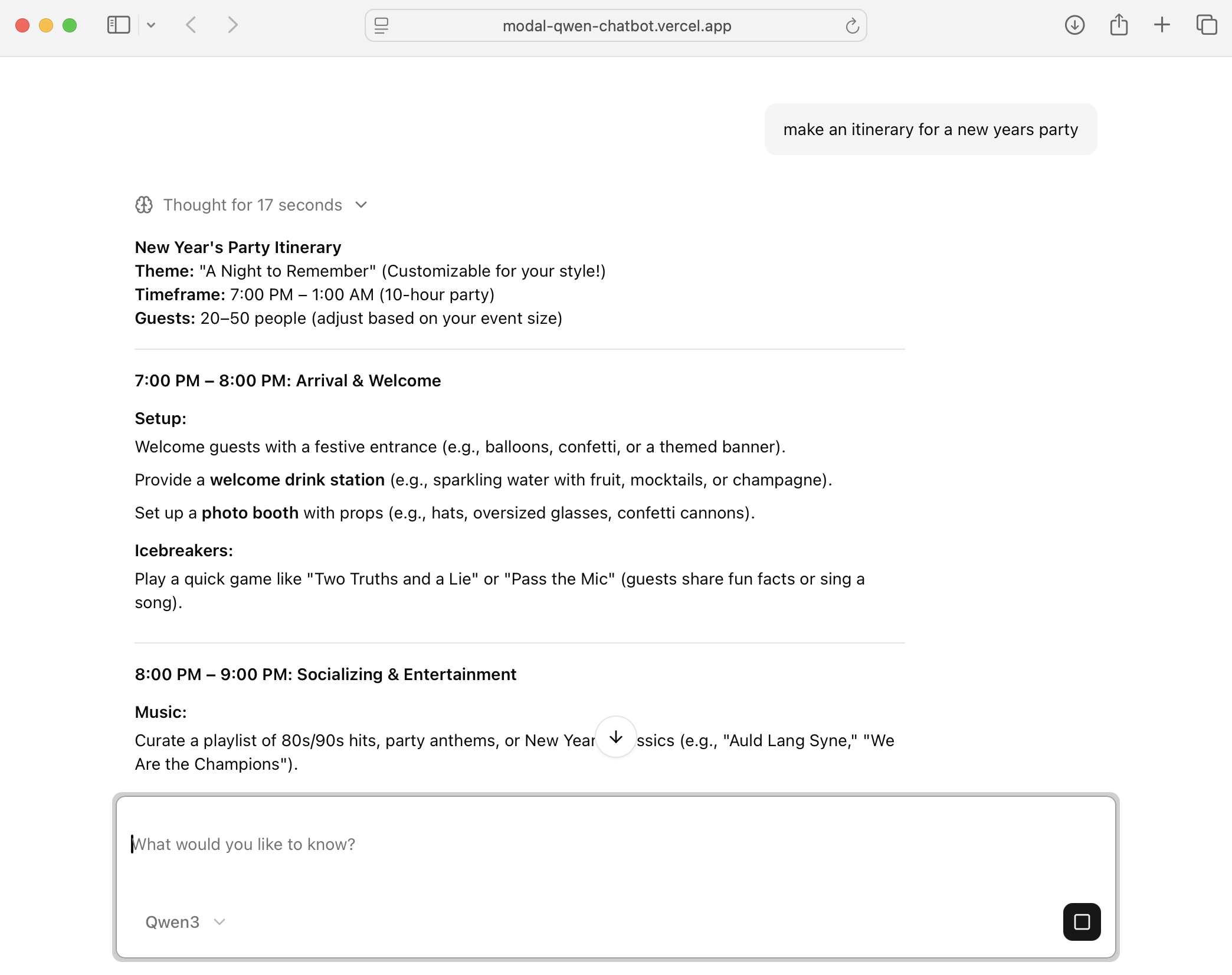
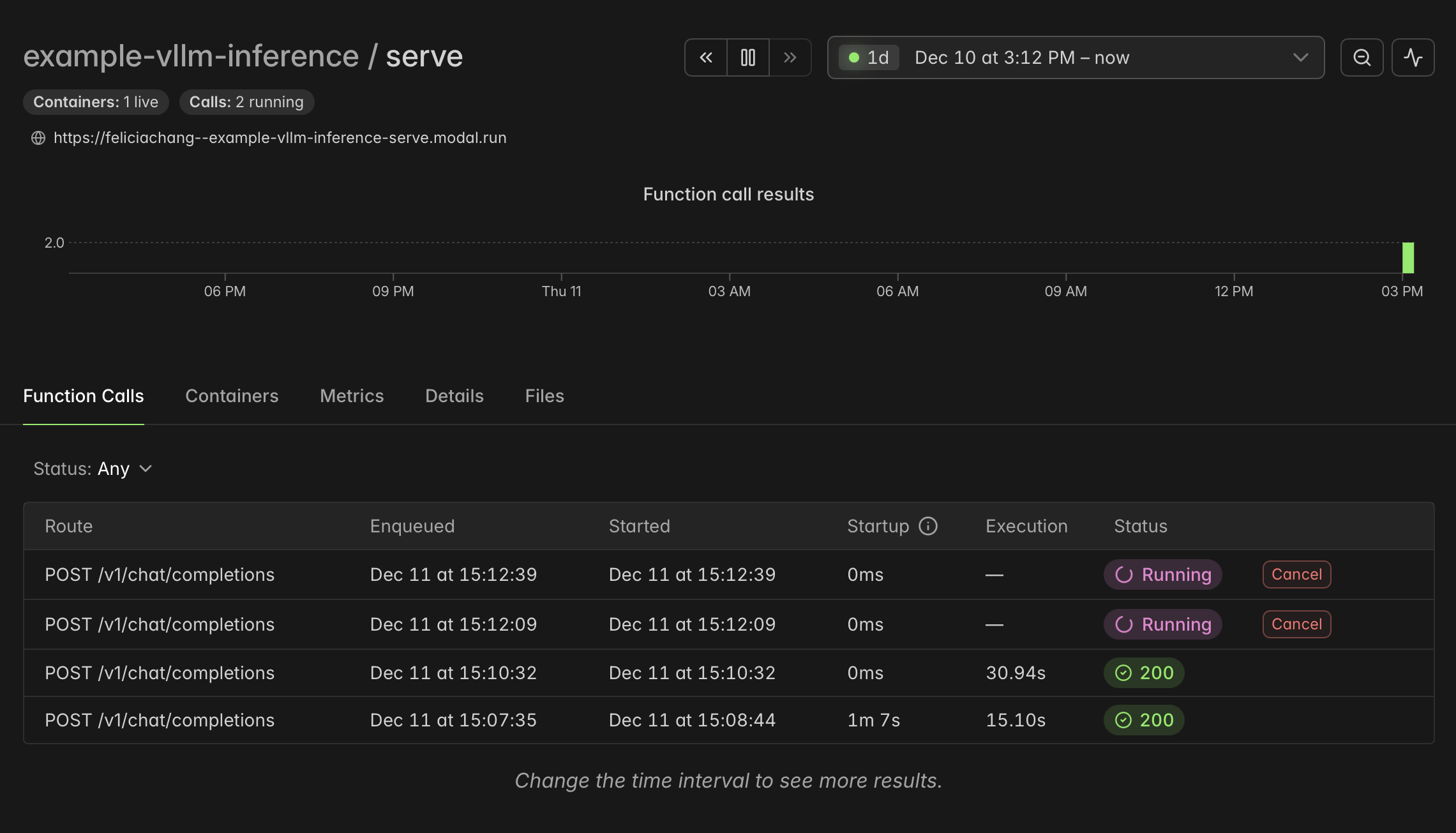
In the Modal dashboard, you can see that your queries trigger function calls:
For next steps, check out snapshotting GPU memory to speed up cold starts on Modal. For questions, join our Slack Community.